How to automatically capture packets when timing thresholds are exceeded.
The Problem
Intermittent timing issues are hard to catch. You might see a glitch in a video stream or a momentary control system hiccup, but by the time you start a packet capture, the event is over.
The Solution: Traps
A trap monitors packet timing continuously and automatically captures traffic when a threshold is exceeded. Instead of watching a chart hoping to catch an anomaly, you set a trap and let the appliance catch it for you.
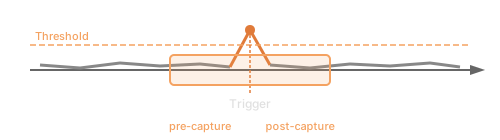
How Traps Work
- Set a threshold — Define what constitutes an anomaly (e.g., IAT > 50 ms)
- Traffic flows — The appliance monitors timing continuously
- Threshold exceeded — When a packet violates the threshold, the trap triggers
- Capture saved — Packets before and after the event are saved
- Download and analyze — Examine the capture to understand what happened
Configuring a Trap
Basic Settings
| Setting | Description |
|---|---|
| Metric | What to monitor (inter-arrival time, jitter, etc.) |
| Threshold | Value that triggers the trap |
| Condition | Greater than, less than, equals |
| Pre-capture | How many seconds/packets before the trigger to include |
| Post-capture | How many seconds/packets after the trigger to include |
Example: Video Frame Timing
To catch frames arriving late (> 40 ms IAT for 30 fps video):
| Setting | Value |
|---|---|
| Metric | Inter-arrival time |
| Threshold | 40 ms |
| Condition | Greater than |
| Pre-capture | 1 second |
| Post-capture | 1 second |
This captures one second of traffic before and after any frame that arrives more than 40 ms after the previous frame.
Example: VoIP Jitter
To catch jitter spikes that could cause audio glitches:
| Setting | Value |
|---|---|
| Metric | Jitter |
| Threshold | 20 ms |
| Condition | Greater than |
| Pre-capture | 2 seconds |
| Post-capture | 2 seconds |
Managing Captures
Storage
Captures are stored on the appliance's internal storage:
| Model | Storage | Typical Capacity |
|---|---|---|
| JT-10.1 | 256 GB NVMe | Hours of 10G captures |
| JT-1.1 | 128 GB NVMe | Hours of 1G captures |
Storage is managed automatically. Old captures are retained until storage is needed.
Downloading
- Go to the Captures panel in the web interface
- Select a capture
- Click Download
- Save the PCAP file locally
Captures can be analyzed with Wireshark or other packet analysis tools.
Retention
| Setting | Description |
|---|---|
| Max captures | Maximum number of captures to retain |
| Auto-delete | Remove oldest captures when limit reached |
| Manual delete | Delete specific captures via web interface |
Trap Strategies
Catch Rare Events
For events that happen occasionally (once per hour or day):
- Set trap threshold conservatively
- Use long pre/post capture windows
- Leave the trap armed continuously
- Check periodically for triggered captures
Diagnose Known Issues
When you know timing degrades during specific operations:
- Set threshold just above normal operation
- Start the operation
- Review any triggered captures immediately
Establish Baselines
To understand normal variation:
- Set threshold very low (will trigger frequently)
- Collect several captures
- Analyze to understand typical timing behavior
- Adjust threshold to catch only true anomalies
Multiple Traps
You can configure multiple traps simultaneously:
- Different thresholds for different severity levels
- Different metrics (IAT, jitter, loss)
- Different filters (specific flows)
Each trap triggers independently when its conditions are met.
Analyzing Captures
Once you have a capture, open it in Wireshark or similar:
- Find the trigger point — Look for the packet that exceeded the threshold
- Examine context — What happened just before?
- Check timestamps — Verify timing with packet timestamps
- Look for patterns — Are there correlated events?
Common Findings
| Observation | Possible Cause |
|---|---|
| Gap in sequence numbers | Packet loss |
| Burst of packets after gap | Buffering/queuing |
| Timing correlates with other flows | Congestion |
| Regular pattern to anomalies | Periodic interference |
Best Practices
-
Start with known issues — Set traps for problems you've already observed
-
Use pre-capture — Context before the event is often more useful than after
-
Be specific — Filter to relevant traffic to reduce capture size
-
Review regularly — Check for triggered captures periodically
-
Save captures — Download important captures before they're auto-deleted
-
Document findings — Note what each capture revealed
Limitations
- Capture buffer size limits pre-capture duration
- Very high packet rates may limit capture completeness
- Storage capacity limits total retention
Further Reading
For detailed information about trap configuration, see the JitterTrap documentation.