You're seeing intermittent frame drops. The camera works fine on the bench, but in production—or when other traffic is on the network—frames occasionally go missing. The vision system logs show errors, but by the time you check, everything looks normal again.
How do you catch a problem that only happens once an hour?
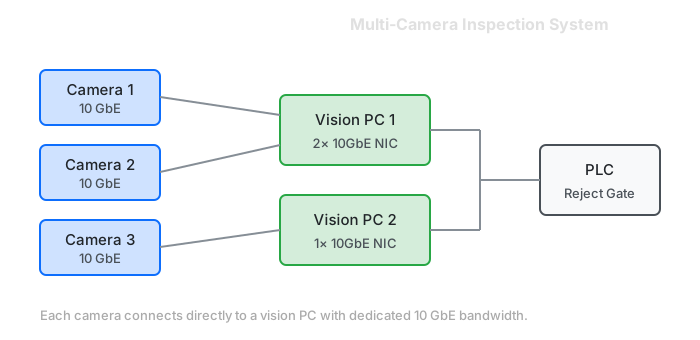
The Problem with Intermittent Issues
Camera vendors like Basler are explicit: latency and jitter are critical in machine vision. A typical GigE Vision system has 100–500 µs of inherent delay between trigger and acquisition—and that's just the camera. The network adds more.
A 5 MP camera at 60 fps generates 2.4 Gbps of bursty traffic. Every 16.7 ms, a burst of packets must arrive before the next frame's deadline. When network conditions degrade—a broadcast storm, a large file transfer, a switch buffer overflow—packets arrive late or not at all.
The symptoms are subtle: occasional missed defects, inconsistent cycle times, sporadic "no camera" errors. Standard network monitoring shows everything fine. The problem is real, but you can't catch it happening.
Catching the Event
The JT-10.1 sits inline between your camera and vision PC, monitoring packet timing continuously. You set a threshold—say, inter-packet gap exceeding 40 ms when you expect 30 fps. When that threshold is violated:
- Trap triggers — the timing anomaly is detected
- Ring buffer captures — the last 30 seconds of traffic is saved to a pcap file
- You have evidence — timestamps showing exactly when and how the network failed
The capture goes to Wireshark with a GVSP dissector. Now you can see which frames were affected, which packets were delayed or lost, and correlate network timing with frame boundaries.
You don't have to be watching. Set the trap, let the system run, come back to evidence.
Example Thresholds for Machine Vision
| Frame Rate | Expected Gap | Trap Threshold |
|---|---|---|
| 30 fps | 33.3 ms | > 40 ms |
| 60 fps | 16.7 ms | > 20 ms |
| 120 fps | 8.3 ms | > 10 ms |
Set the threshold slightly above your expected inter-frame period. When the trap fires, you know something abnormal happened—and you have the packets to prove it.
Isolating the Problem: Network or PC?
The vision system reports dropped frames. Is it the network, or the receiving PC?
The JT-10.1 sits at the boundary. It sees exactly what the network delivers to the PC:
-
Network timing looks clean, but frames still drop? The problem is downstream—NIC, driver, CPU load, or application software. The network delivered the packets; something on the PC failed to process them.
-
Network timing shows jitter, gaps, or loss? The problem is upstream—switches, cabling, or competing traffic. The PC never had a chance.
This isolates the fault domain. Instead of "it's dropping frames somewhere," you know which team owns the fix.
Stress Testing Before Deployment
Beyond catching intermittent issues, the JT-10.1 can deliberately inject network impairments to find where your system breaks:
Finding margins:
- System works now, but how much headroom do you have?
- Inject increasing delay, jitter, or packet loss
- Find the threshold where frames start dropping
- Document: "System tolerates up to X ms jitter / Y% loss"
Testing receiver software:
- Does your vision application handle degraded conditions gracefully?
- Inject impairments during development, before deployment
- Verify error handling, timeouts, recovery behavior
Comparing configurations:
- Does this NIC perform better than that one?
- Does the new switch introduce more jitter?
- Run the same stress test across configurations, compare results
Validating shared infrastructure:
- Camera will share network with HMI, PLC, or file transfer traffic
- Inject congestion to simulate worst-case conditions
- Know the margins before going live
When Network Testing Matters
A camera connected directly to a dedicated NIC rarely has network problems—the path is simple and uncontested.
Network testing becomes relevant when:
- Shared infrastructure — cameras share switches or segments with other traffic
- Multi-camera systems — multiple cameras aggregate through switches, competing for bandwidth
- Development and integration — validating receiver software before deployment
- Long cable runs — extended paths through patch panels and infrastructure switches
- Intermittent field issues — need to reproduce or capture evidence of reported problems
Reference: Camera to Network Metrics
Camera specs describe frames and pixels. Networks deal in packets and timing. This table helps translate.
Data Rates by Resolution
8-bit monochrome:
| Resolution | Pixels | 30 fps | 60 fps | 120 fps |
|---|---|---|---|---|
| VGA (640×480) | 0.3 MP | 74 Mbps | 148 Mbps | 295 Mbps |
| 720p (1280×720) | 0.9 MP | 221 Mbps | 442 Mbps | 885 Mbps |
| 1080p (1920×1080) | 2 MP | 498 Mbps | 995 Mbps | 2.0 Gbps |
| 5 MP (2592×1944) | 5 MP | 1.2 Gbps | 2.4 Gbps | 4.8 Gbps |
| 4K (3840×2160) | 8 MP | 2.0 Gbps | 4.0 Gbps | 8.0 Gbps |
| 12 MP (4096×3072) | 12 MP | 3.0 Gbps | 6.0 Gbps | — |
| 20 MP (5472×3648) | 20 MP | 4.8 Gbps | 9.6 Gbps | — |
Note: 10-bit adds 25% to data rate; 12-bit adds 50%.
Translating Camera Metrics to Network Metrics
| What You Measure | Camera Term | Network Term | JT-10.1 Shows |
|---|---|---|---|
| Timing consistency | Frame jitter | Packet timing variance | Inter-arrival histogram |
| Data rate | fps × resolution | Throughput (Gbps) | Bytes/second graph |
| Missing data | Dropped frames | Lost packets | Gaps in packet sequence |
| Timing budget | Frame period | Inter-burst interval | Time between packet groups |
Supported Protocols
| Protocol | Transport | Status |
|---|---|---|
| GigE Vision (GVSP/GVCP) | UDP over IP | Supported — packet timing measurement |
| 10GigE Vision | UDP over IP | Supported — requires JT-10.1 |
| IEEE 1588 (PTP) | UDP | Timing measured, but PTP decode requires specialized tools |
| CoaXPress, Camera Link, USB3 Vision | Non-Ethernet | Not supported — not IP-based |
The JT-10.1 measures packet timing for any IP traffic. It doesn't decode GVSP frame boundaries—that's what Wireshark is for.
The Workflow
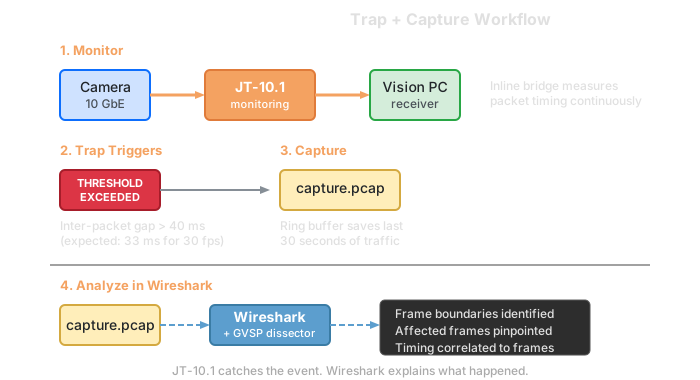
The JT-10.1 catches the event and preserves evidence. Wireshark provides protocol-level analysis. Your camera SDK reports which frames the application saw as corrupted.
Complementary Tools
| Tool | What It Does |
|---|---|
| Wireshark + GVSP dissector | Decode captured packets, identify frame boundaries |
| Camera vendor SDK | Frame-level diagnostics, GenICam configuration, application-side error logs |
| eBus/Pleora SDK | GigE Vision performance analysis |
| PTP analyzer | IEEE 1588 synchronization analysis (if using triggered acquisition) |
Test Setup
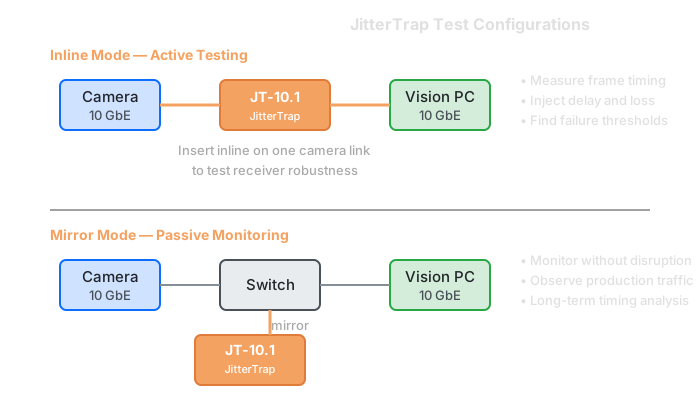
The JT-10.1 deploys inline as a transparent bridge. All traffic passes through while timing is measured and thresholds are monitored.
Single camera: Position between camera and vision PC.
Multi-camera through switch: Position between switch and vision PC to see aggregate traffic. To isolate individual camera behavior, position between specific camera and switch.
What This Won't Help With
- Direct camera-to-NIC connections with no infrastructure in the path—nothing to test
- Camera-internal issues (sensor timing, internal buffers)—the JT-10.1 can't see inside the camera
- PTP synchronization analysis—packet timing is measured, but PTP decode needs specialized tools
- Non-Ethernet protocols (CoaXPress, Camera Link, USB3 Vision)
Debugging an intermittent vision system issue? Contact us to discuss your setup.